Create Folders and Features
The Folders panel is used for organizing test cases. It displays a list of top-level folders, each representing a logical grouping of related test cases. The plus (+) icon next to a folder indicates it can be expanded to view or add sub folders, supporting a hierarchial organization of test cases.
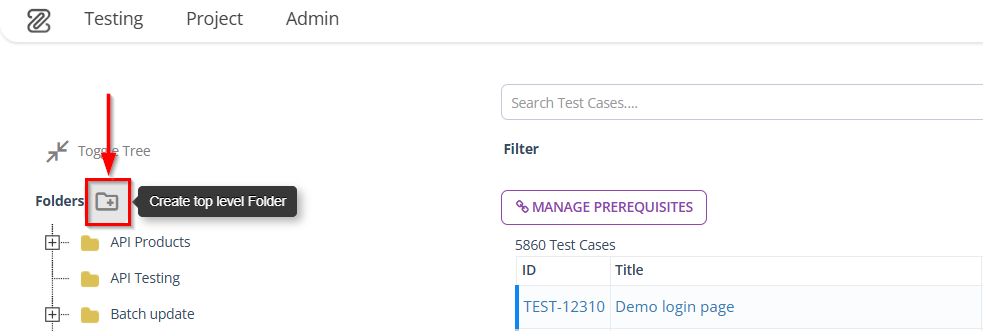
At the top of the panel, the Create top level Folder option is available. This option is used to add a new main folder, enabling users to define a new category for organizing test cases within the project.
The Feature panel represents a top-level functionality or module of a project that groups related test cases, helping to organize and manage testing for specific areas of the application. The plus (+) icon next to a feature allows users to expand it to view or add sub features.
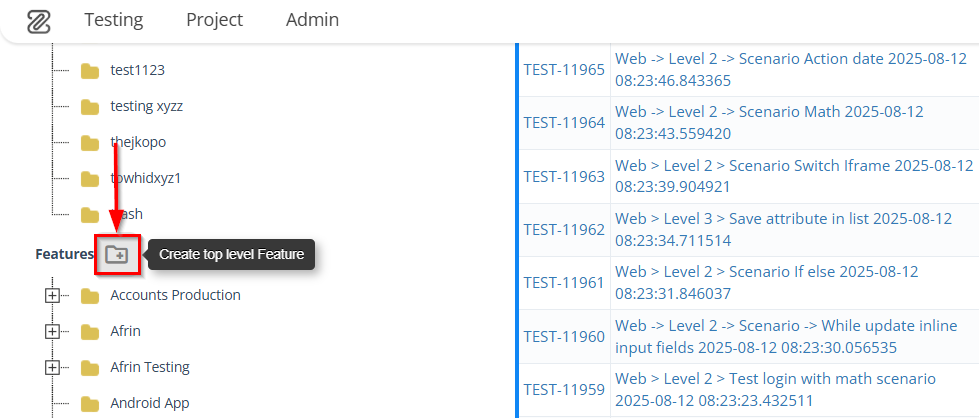
The Create top level Feature button lets users add a new main feature to organize test cases under a new functionality.
Why it matters / Use Cases:
- Organize Test Cases: Folders and features group related test cases for easier navigation and management.
- Hierarchial Structure: Folders support subfolders, allowing clear and logical structuring of test cases.
- Focused Testing: Features group test cases by specific functionality or module, ensuring targeted test coverage.
- Maintenance and Bulk Operations: Folders simplify updates, moves, and exports of multiple test cases at once.
- Tracking and Reporting: Features enable easier tracking of test results and reporting per functionality.
Prerequisites
- Access to ZeuZ Server with permissions for Testing → Test Case → Search.
- Plan a logical hierarchy for folders and define features representing specific functionalities.
- Use clear and consistent names for folders and features to reflect their purpose.
- Identify test cases that will be linked to features or organized within folders for better management.
Quick-Start
- To create a folder, click the Create top level Folder button available under the Folders option.
- Similarly, to create a feature, click the Create top level feature button available under the Features option.
Features
Create top level folder
- Click the Create top level Folder button to create a new folder.
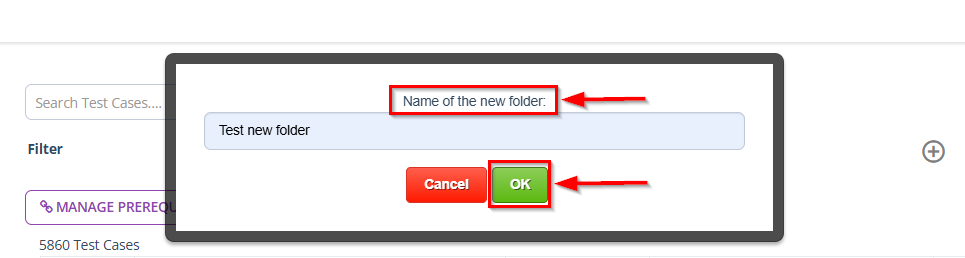
- Click to enter the Name of the new folder (e.g., Test new folder).
- Click on the OK button.
Create top level feature
- Click the Create top level Feature button to create a new feature.
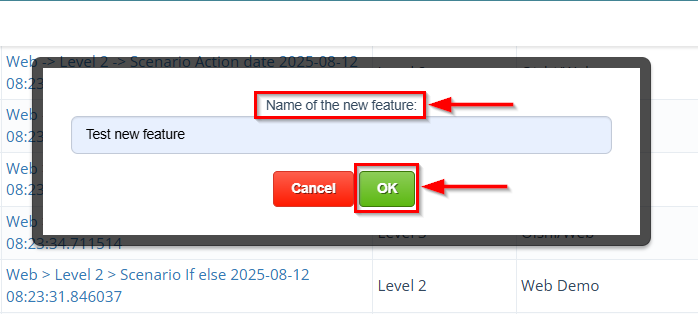
- Click to enter the Name of the new feature (e.g., Test new feature).
- Click on the OK button.
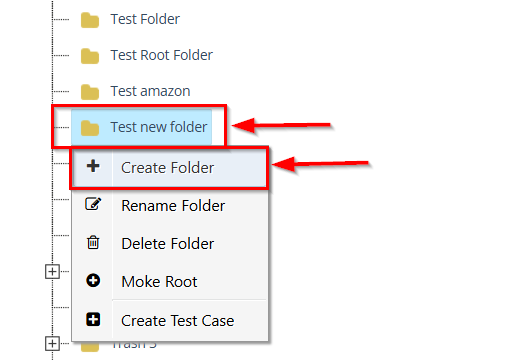
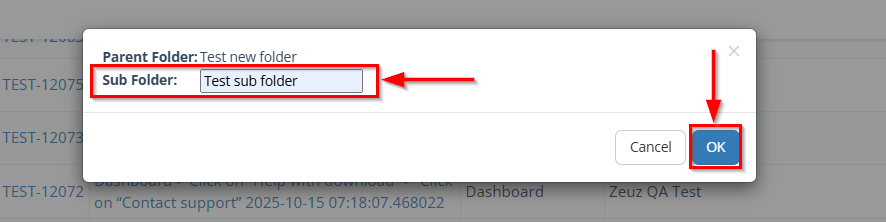
Create sub folder
- Right-click the specific folder for which a sub folder needs to be created.
- Then, click the Create Folder option.
- Next, enter the name of the Sub Folder (e.g., Test sub folder).
- Click on the OK button.
Create sub feature
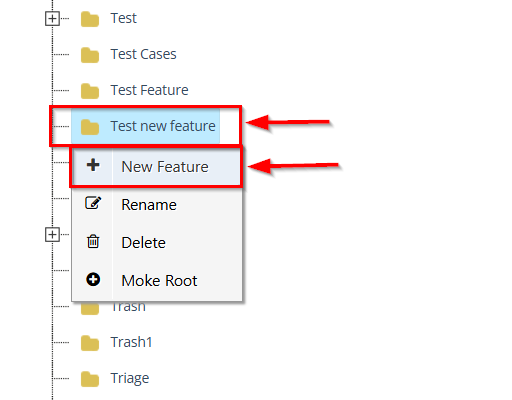
- Right-click the specific feature for which a sub feature needs to be created.
- Then, click the New Feature option.
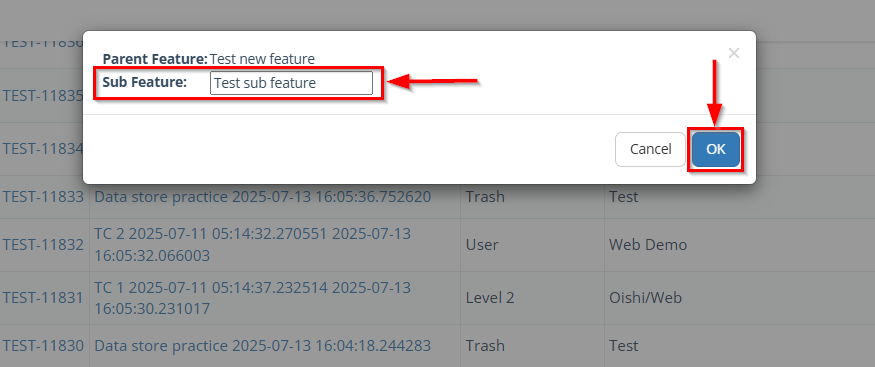
- Next, enter the name of the Sub Feature (e.g., Test sub feature).
- Click on the OK button.
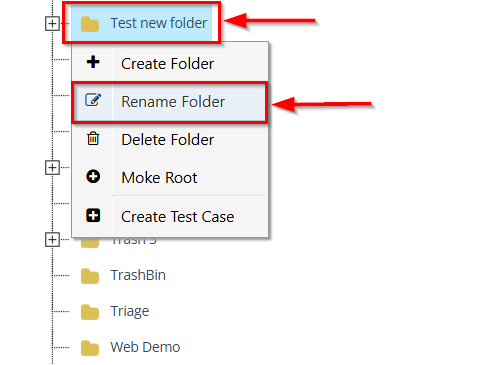
Rename folder
- Right-click the specific folder that needs to be renamed.
- Then, click the Rename Folder option.
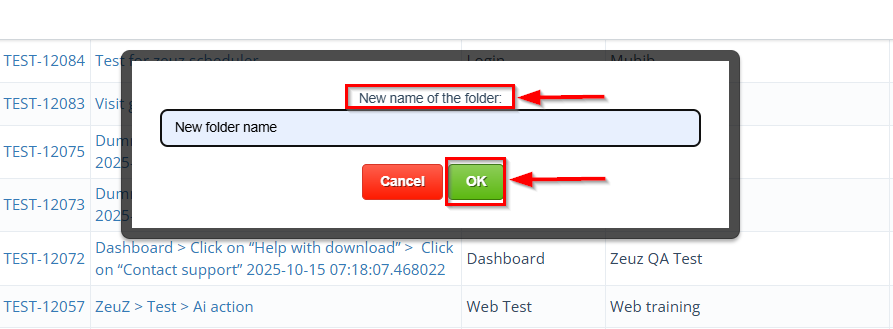
- Next, enter the New name of the folder (e.g., New folder name).
- Click on the OK button.
Rename feature
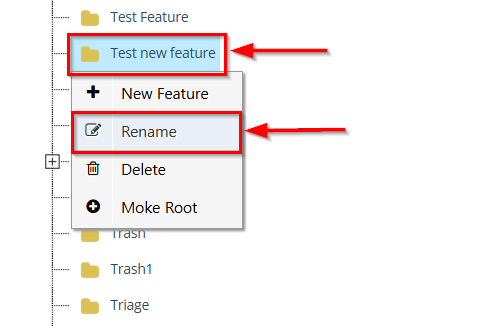
- Right-click the specific feature that needs to be renamed.
- Then, click the Rename option.
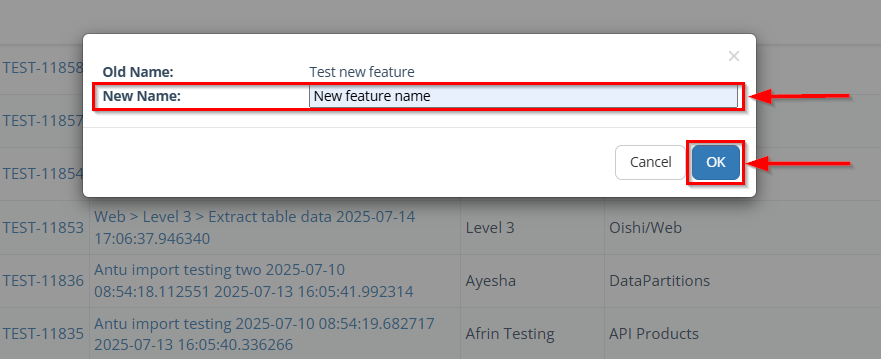
- Next, enter the New Name of the feature (e.g., New feature name).
- Click on the OK button.
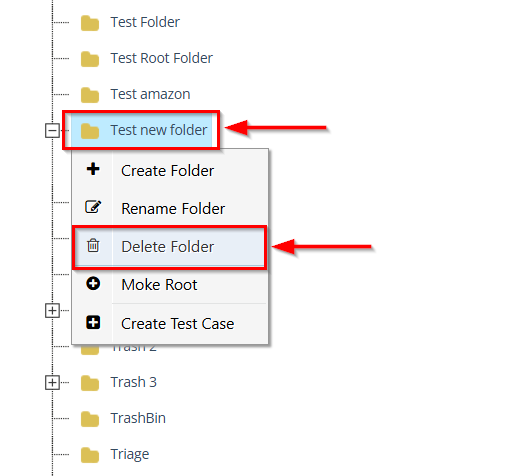
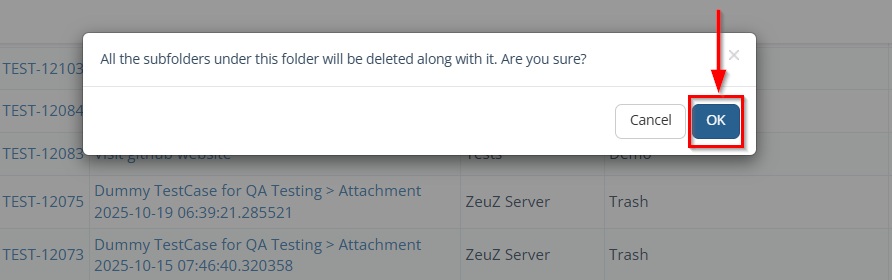
Delete folder
- Right-click the specific folder that needs to be deleted.
- Then, click the Delete Folder option.
- Next, click the OK button to delete the specific folder.
If any test cases are linked to the specific folder, it cannot be deleted, and a notification message will appear stating, “Document or test cases are linked with this folder".
Delete feature
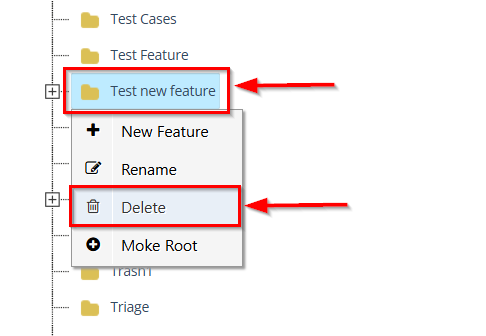
- Right-click the specific feature that needs to be deleted.
- Then, click the Delete option.
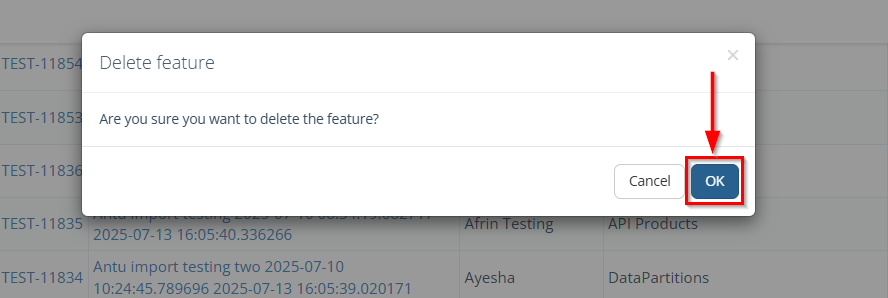
- Next, click the OK button to delete the specific feature.
If a feature linked to a specific test case is removed, the Feature column for that test case will display null.
FAQs / Troubleshooting
Can folders or features be created without a name?
No. A valid and unique name must be provided to create a folder or feature successfully.
Why can a folder not be deleted?
A folder cannot be deleted if test cases or documents are linked to it. A notification message is displayed in such cases.
What happens if a feature linked to test cases is removed?
The Feature field for the associated test cases will display null.
How to avoid confusion while creating folders and features?
Use clear naming conventions and plan the folder and feature structure in advance.
Changelog
- New UI has been introduced [20250712]